Journal entry
MacBook Docking Station Alternative Ideas

The problem usually is not the dock. It is where the dock forces your MacBook to live.
Most people searching for a macbook docking station alternative are trying to fix the same setup failure. The laptop stays on the desk, the cable run gets messy, the dock turns into another visible box, and the whole point of buying a clean monitor setup disappears. You still have one cable going into the MacBook, but now you also have a slab of aluminum or plastic sitting there collecting dust and stealing space.
If that sounds familiar, you do not need a different dock first. You need a different layout.
What people actually mean by a macbook docking station alternative
A lot of searches around this topic are slightly off. People type "alternative" because they know the current solution feels wrong, but they do not always know which part is wrong.
Sometimes they want fewer cables. Sometimes they want the laptop off the desk. Sometimes they want to keep using the MacBook closed with an external monitor, keyboard, and storage without staring at a hub all day. Those are different problems.
A docking station solves connectivity. It does not solve placement.
That distinction matters because if your USB-C or USB4 dock already handles charging, display output, Ethernet, audio, and storage, replacing it with another dock often changes very little. You still need somewhere for the laptop to go. If it sits flat on the desk, you lose usable surface area. If it sits on a stand, you gain some airflow, but the machine is still visible and still part of the clutter.
The better alternative is often keeping the dock you already own and mounting the MacBook out of sight.
The cleaner alternative is a mount, not another box
For a lot of desks, the real macbook docking station alternative is a physical mount paired with the cable setup you already trust. That gets the computer off the work surface without forcing you into a new ecosystem.
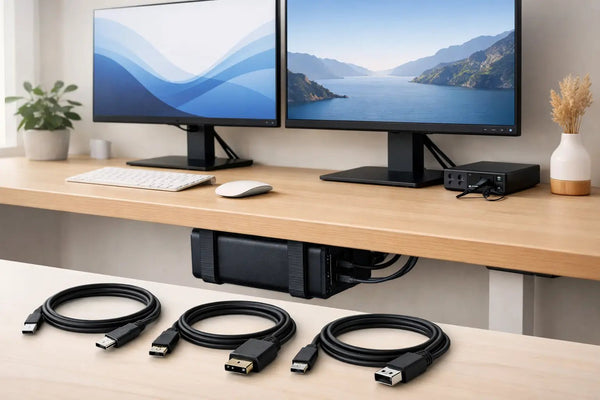
Under-desk mounting is usually the cleanest version of this. The MacBook stays accessible, but it is no longer in the shot, under your notebook, or parked next to your keyboard. You dock once, connect everything, and the machine disappears.
That is exactly the problem the SlideUnder line is built to solve. For thicker desktops, sit-stand desks, and MacBook Pro 14 and 16 setups where stiffness matters more, the SlideUnder Pro Crossbar Edition makes more sense than a generic tray or adhesive shelf. It fixes the laptop in a defined position under the desk so the cable path stays repeatable. No wobble. No improvised brackets. You can see the product here: https://dockedbydesign.com/products/slideunder-pro-crossbar-edition
That is a very different category from a dock, but in practice it is the thing many people were looking for all along.
Why vertical stands only solve half the problem
The usual recommendation is a vertical stand. It is better than leaving the MacBook open beside your monitor. It shrinks the footprint and gets the screen out of the way.
Still, it keeps the laptop on the desk. You still route the cable across your workspace. You still have to decide whether the machine sits left, right, or behind the monitor. And if your desk is not that deep, every inch matters.
Vertical stands are fine when you want to swap between portable and desk mode several times a day. You grab the laptop, drop it back in, and move on. That convenience is real.
But if your MacBook spends 80 percent of its life docked at a fixed setup, the stand becomes a polite version of clutter. Cleaner than before, not actually clean.
Under-desk mounting works best when the desk is the system
A good desk setup works like a system. Monitor in the right position. Keyboard and mouse where your shoulders stay relaxed. Power where it needs to be. Cables routed once. Then left alone.
That is why under-desk mounting beats most visible dock alternatives. It treats the MacBook as part of the infrastructure instead of part of the decor.
There are trade-offs. If you constantly plug in SD cards, headphones, or random USB devices directly into the laptop, hiding it under the desk adds friction. The better move there is to keep a small front-access hub on the desk for temporary I/O and leave the main dock connected permanently. If you almost never touch the laptop once it is docked, under-desk is the cleaner answer.
Fit matters too. Case-on MacBooks can be a problem because tolerances matter. A mount designed around the actual machine dimensions will not behave the same once you add extra thickness. That is not a flaw. It is the difference between a mount that holds securely and one that tries to fit everything badly.
Edge-mounted setups make sense when you dock and undock often
Not everyone wants the laptop fully hidden. Some people dock in the morning, undock at lunch, then dock again later. For that pattern, edge mounting is usually better than under-desk.
An edge mount keeps the MacBook off the main work surface but close enough to reach without bending under the desk. It also keeps the cable path short and predictable, especially if your dock or monitor connection sits near the back edge already.
That is where something like the SlideEdge Pro fits. It places the MacBook at the desk edge instead of on top of it, which is useful if you want quick removal but still hate the look of a stand parked beside your keyboard. The point is not just saving space. It is controlling where the machine lives so the rest of the desk can stay clear.
If your desk sits against a wall and the side profile matters, edge mounting can also look more intentional than a stand, because the laptop stops reading as another object on the desktop.
The cable matters more than people think
A lot of bad docking experiences are really cable problems.
People blame the dock because displays flicker, charging drops, or peripherals disconnect. Then they buy another dock and keep the same weak cable in the chain. Nothing improves.
If your goal is single-cable MacBook use, the cable is part of the dock. Treat it that way. A proper USB4 cable is not an accessory after the fact. It is the path for power, display signal, and data.
For setups built around one connection, SlideLink Pro is the missing piece more often than another dock is. It is a USB4 80Gbps cable meant for exactly this use case - dock once, connect everything. If your current setup almost works but feels inconsistent, the cable is worth looking at before you start replacing bigger hardware. Product page: https://dockedbydesign.com/products/slidelink-pro-usb4-80gbps-cable
That is especially true if you are trying to hide the MacBook under the desk. Once the laptop is mounted, you want a cable that behaves the same way every time you connect it.
When a traditional dock is still the right answer
There are cases where a mount is not a docking station alternative. It is just a mount.
If you are starting from nothing and need more ports, more display support, wired Ethernet, audio I/O, or front-facing media card access, you still need some form of dock or hub in the system. A mount will not create ports that do not exist.
Same if you use your MacBook in multiple rooms and need a dead-simple drop-in station each time. In that case, the dock is doing real work, and replacing it with a mount misses the point.
The smarter approach is often combining roles. Let the dock handle connectivity. Let the mount handle placement. Let the cable handle the single connection. Each part has one job.
That is less glamorous than hunting for the one product that claims to do everything, but it works better in real setups.
What to choose based on how you actually use the desk
If your MacBook stays docked most of the week, go under-desk. That gives the cleanest result and the most usable desk surface.
If you remove the laptop often and want fast access, edge mounting is usually the better compromise. If your setup is built around one cable into a dock or monitor, make sure the cable is good enough before you blame the rest of the chain.
And if your desk is unusual - thicker top, custom depth, odd frame clearance - that is where custom builds matter. This category is full of generic clamps and trays because mass-market accessories have to fit almost everything. The result is that they fit nothing especially well. A desk setup gets cleaner when the hardware is built around the actual dimensions involved.
Sunny prints these mounts in-house to under 0.1 mm calibration, which is unusually relevant here because fit is the product. This is not a decorative object where being close is fine. If the laptop slides badly, rattles, or sits too loose, the whole idea fails.
A good macbook docking station alternative is not the product with the most ports or the flashiest spec sheet. It is the one that removes friction from the way you already work. Usually that means hiding the laptop, keeping the cable path short, and leaving the desktop for the things you actually touch.