Journal entry
Best Cables for Dual Monitor MacBook Setups

A dual-monitor MacBook setup usually fails in one boring place: the cable.
Not the monitor. Not the dock. Not macOS. The cable sitting between them, quietly cutting refresh rate, dropping signal, or refusing to carry enough power. If you're trying to find the best cables for dual monitor MacBook setups, the real job is matching bandwidth, port type, and monitor resolution without adding random adapters that turn your desk into a parts bin.
What actually matters when choosing cables
MacBooks are simple on the surface. One cable in, everything works. That's the goal anyway. But dual displays change the math fast, because now you're splitting bandwidth across two monitors, charging, and often a few USB devices on the same connection.
The first question is not which cable looks nicest. It's what signal path your setup is using. A MacBook connected directly to two monitors needs different cable choices than a MacBook connected to a dock, and a dock needs different cable choices than a monitor with built-in USB-C passthrough.
Then there is resolution and refresh rate. Two 4K displays at 60Hz is one thing. One 4K and one ultrawide is another. Two high refresh displays for design, animation, or video preview work can push a cable or dock past its actual limit even when the product listing says 8K somewhere in the title.
A lot of bad buying advice starts with cable type and skips bandwidth. That is backwards. Start with the signal your MacBook needs to send. Then buy the shortest, cleanest cable that can actually carry it.
The best cables for dual monitor MacBook use depend on your path
There isn't one universal winner. There are three common setups, and each has a different answer.
USB-C to USB-C is the cleanest option
If your monitor supports full video input over USB-C, this is usually the best route. Fewer adapters. Fewer failure points. Cleaner desk.
But USB-C is where people get burned, because the connector tells you almost nothing. One USB-C cable might charge a phone and do nothing else. Another might carry power, data, and dual-display bandwidth through a dock without blinking.
If you're building a single-cable desk, this is where a proper USB4 cable matters. The SlideLink Pro USB4 80Gbps cable exists for exactly this kind of setup - one cable from the MacBook to the dock, then your displays and peripherals stay connected. Not every desk needs 80Gbps, but if you're running dual monitors and want margin for drives, networking, or higher resolution later, extra headroom is better than replacing a mystery cable in six months. You can find it here: https://dockedbydesign.com/products/slidelink-pro-usb4-80gbps-cable
The tradeoff is cost and honesty about the rest of the chain. A premium USB4 cable does not fix a weak dock or a monitor with limited USB-C implementation. It just removes the cable as the bottleneck.
USB-C to DisplayPort is often the best direct-to-monitor choice
If your monitors have DisplayPort and you are connecting directly from the MacBook or from a dock with DisplayPort output, this is usually the most reliable option for higher resolutions and refresh rates.
DisplayPort tends to behave better than HDMI in mixed monitor setups, especially once you get into ultrawides or high refresh panels. If your monitor supports both, DisplayPort is often the cleaner choice for computer use.
For a lot of MacBook users, the best real-world setup is a dock connected by one proper USB4 cable to the laptop, then DisplayPort cables from the dock to each monitor. That keeps the laptop connection simple while giving the monitors a stable path.
USB-C to HDMI is fine, but only when the spec is clear
HDMI is common. It is not automatically wrong. But it is where spec confusion gets expensive.
A cable labeled 4K-compatible can still be a bad fit for dual monitors if one screen starts flickering at the resolution you actually use. HDMI version support matters. So does the dock or adapter sitting in front of it.
If your monitor only has HDMI, buy a cable rated for the resolution and refresh rate you intend to run, not the one you hope might work. And keep it short if possible. Long HDMI runs are where weird behavior starts showing up first.
Why cheap USB-C cables keep breaking good setups
Most cheap USB-C cables are built around charging, not display bandwidth. They work perfectly until you ask them to carry video, power, and dock traffic at the same time.
That is why one cable can charge your MacBook and still fail the moment you connect two external displays through a dock. The laptop sees power, maybe even sees the dock, but the display signal starts dropping out under load.
This is also why a clean desk needs better parts, not more parts. Every extra coupler, adapter, gender changer, and extension adds one more place for signal loss or handshake issues. If the goal is dock once, connect everything, use fewer pieces and better ones.
Dual monitor MacBook setups are really about bandwidth budgeting
This is the part that gets ignored because it is less fun than buying gear.
A cable does not live alone. Your MacBook, dock, monitors, and cable are sharing a fixed amount of bandwidth. If one part of that chain is limited, the whole setup behaves like the limited part.
Two examples make this easier.
If you run two 1440p displays at standard refresh rates, a lot of decent docks and cables can manage that without drama. If you run two 4K displays, add fast external storage, and expect charging over the same connection, your margin disappears fast. The cable that was "good enough" on paper becomes the weak link.
That is why overbuying the laptop-to-dock cable is usually smart. Not because everyone needs the top spec today, but because this is the one cable carrying the whole desk.
Best cables for dual monitor MacBook desks that stay clean
A clean setup is not just visual. It is easier to troubleshoot and easier to live with.
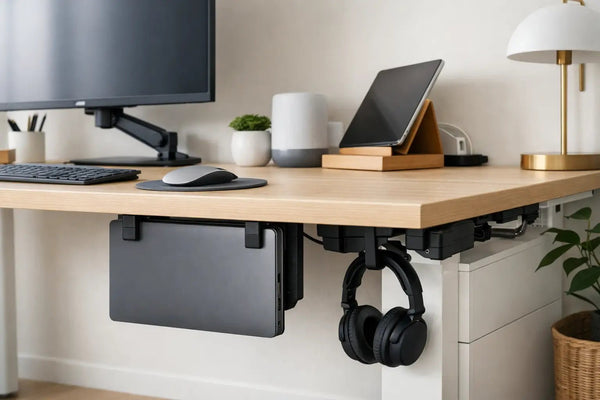
If your MacBook stays docked most of the time, mount it out of sight and make the cable run deliberate. An under-desk mount like the SlideUnder Pro Crossbar Edition makes sense for MacBook Pro desk builds where the laptop should disappear but still stay accessible. It is especially useful on thicker desktops or sit-stand desks where fit and stability matter more than generic clamp hardware. Product page: https://dockedbydesign.com/products/slideunder-pro-crossbar-edition
This matters because cable choice changes when the laptop is mounted. You stop plugging and unplugging side ports all day. You stop caring about a bundle of adapters hanging off the edge of the desk. One good host cable to the dock becomes the center of the system. Then your monitor cables can stay fixed and routed once.
That is the setup most people were trying to build all along, even if they started by searching for a cable.
A few cable mistakes that keep coming up
Cable length is the first one. Buy the shortest cable that comfortably fits. Extra length looks harmless until you need to hide it.
The second mistake is mixing standards without checking the weakest link. A USB4 cable into an old HDMI-only dock does not become a USB4 desk. It becomes an old HDMI-only dock with a nice cable.
Third is trusting connector shape over specification. USB-C is a connector. It is not a promise.
And the fourth is buying for the current monitor only. If your desk is already halfway to a better display, buy the cable once.
So what should you actually buy?
If your monitor supports USB-C video well and your setup is simple, USB-C to USB-C can be the cleanest answer.
If you are using a dock and care about stability, USB-C or USB4 from MacBook to dock, then DisplayPort to each monitor, is usually the strongest choice.
If your monitor only has HDMI, use HDMI, but buy for the exact resolution and refresh rate you need and avoid adapter chains.
And if you want one cable from the MacBook that handles the whole desk, buy that cable properly the first time. That is the one place cutting corners tends to cost more later.
A good dual-monitor setup should disappear when you're working. No black screens. No cable spaghetti. No wondering which adapter is the problem this time. Get the signal path right, then make the desk match it.