Journal entry
Clean Desk Setup for MacBook That Works

A clean desk setup for MacBook usually falls apart in one spot: the laptop itself. You buy the good monitor, the keyboard you actually like typing on, maybe a proper desk lamp. Then the MacBook ends up half-open on a stand, a dock next to it, and three cables looping across the surface. The desk is technically functional. It just never looks finished.
The fix is not another accessory sitting on top of the desk. The fix is getting the MacBook off the desk entirely, then reducing the number of visible connections to one.
What makes a desk look clean
Most people think "clean" means minimal. It doesn't. It means controlled.
If your display, keyboard, audio interface, SSD, and charger all stay in place and all your cabling disappears behind or under the desk, the setup reads as clean even if it's doing a lot. If your laptop is propped up next to the monitor with cables plugged into both sides, it reads as temporary.
That's why MacBook setups get messy fast. The laptop is both the computer and the thing you keep touching. If you use it closed in clamshell mode, it becomes dead space unless you mount it properly. If you use it open, it competes with the monitor and eats desk depth.
There isn't one right answer here. Some people want the MacBook completely hidden. Some want fast access to ports or Touch ID. The cleanest setup is the one that matches how you actually work, not the one that photographs best for ten minutes.
Start with the MacBook position
Before you think about cable trays or monitor arms, decide where the laptop should live. That choice determines everything else.
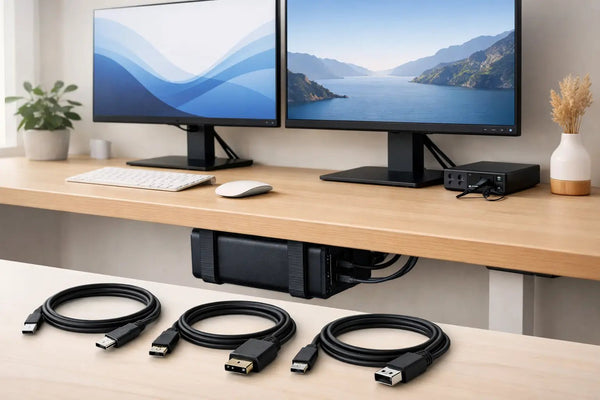
If you want the desk surface clear, under-desk mounting is usually the right move. It keeps the machine connected and out of sight, but still attached to the desk so it isn't sliding around or hanging off a shelf somewhere. For this kind of clean desk setup for MacBook, the mount matters more than people expect. A bad one flexes, blocks airflow, or forces awkward insertion angles.
The under-desk option I built for that problem is the SlideUnder Pro Crossbar Edition for MBP14 and MBP16. It exists because thicker desks and sit-stand frames change the installation problem. The crossbar gives a more stable mounting structure when a basic under-desk bracket isn't the best fit. You can see the details here: https://dockedbydesign.com/products/slideunder-pro-crossbar-edition
If your desk edge is easier to access than the underside, edge mounting can make more sense. That keeps the MacBook off the top while still letting you reach it without crouching under the desk. It depends on your desk shape, apron, and how often you undock.
Wall mounting is the most visually clean option, but not always the most practical. It works best when the desk sits near a wall and the cable path is short. If your setup moves often or your desk floats in the room, it can turn into a longer cable management problem instead of solving one.
One cable is where the setup stops looking busy
A lot of "clean" desks still hide a mess badly. The monitor cable goes one way, power another, USB hub off to the side, charging brick somewhere on the floor. You don't notice it in photos because the camera crops it out.
In daily use, one-cable docking matters more than almost anything cosmetic. Plug in once. Power, display, peripherals, done. That's the difference between a setup you maintain and one you slowly stop bothering with.
For MacBook desks, the cable is not a small detail. USB4 quality actually matters when you're pushing high bandwidth and charging through the same connection. SlideLink Pro is the cable built for that single-cable setup - USB4 at 80Gbps, with the point being simple: dock once, connect everything. Product page here: https://dockedbydesign.com/products/slidelink-pro
This is also where trade-offs show up. A single cable only works cleanly if the rest of the system is stable. If you're constantly swapping drives, cameras, or SD cards, you'll still have activity on the desk. That's normal. The goal isn't zero cables at every moment. It's reducing the permanent ones.
A clean desk setup for MacBook needs fewer visible decisions
Visual clutter is often decision clutter. Where does the laptop go? Which side gets power? Where do you drop the cable when you leave? If the answer changes every day, the desk never settles.
The cleanest setups remove repeat choices. The MacBook has one home. The dock stays mounted. The charging path stays fixed. The cable comes from the same place every time.
This is why a vertical stand on the desk often misses the mark, even if it saves space. It still claims surface area. It still leaves a visible object next to the monitor. It often still needs a cable bend that looks messy from at least one angle. Better than leaving the laptop flat on the desk, yes. But not the cleanest option if your goal is for the desk itself to disappear.
Watch desk depth before you buy anything
A lot of setup advice ignores dimensions. That's where people waste money.
If your desk is shallow, the MacBook on top is a bigger problem because it steals the space your keyboard and mouse need. If your desk is deep, you can get away with more, but deep desks also hide bad habits because clutter spreads out instead of disappearing.
Under-desk mounting also depends on what's under there already. Sit-stand frames, support beams, drawers, and cable trays all compete for the same real estate. That's one reason custom builds exist. Some setups are straightforward. Some are weird in exactly one annoying way. If your desk depth or underside layout is non-standard, a custom mount is often better than forcing a generic bracket into place.
Cases are another issue. If your MacBook lives in a shell case, don't assume every mount will fit it. Extra thickness changes tolerances fast. Better to measure properly than buy based on hope.
Ventilation matters, but not in the dramatic way people talk about it
A closed MacBook doesn't need to be treated like a desktop tower with six fans. But it does need sensible mounting.
Don't wedge it into foam. Don't bury it in a fabric sleeve under the desk. Don't press mounting surfaces against areas that need open airflow. A proper MacBook mount should hold the machine securely while leaving space around it. That's one of those details that sounds obvious until you see how much bad hardware ignores it.
If you do sustained heavy work - video exports, large code builds, 3D, long external display sessions - this matters more. If your workload is mostly browser, docs, Slack, and occasional creative work, you have more margin. Still, clean should never mean cramped.
Cable management starts after the dock, not before it
People tend to buy trays, clips, and sleeves first. That's backwards.
First decide where the MacBook lives. Then decide where the dock or hub lives. Then route from those fixed points to power and peripherals. Only after that should you tidy the remaining cable runs.
If the MacBook is mounted under the desk and your monitor cable drops straight down to a dock mounted below, the cable management job gets much easier. If the laptop stays on the desk and your dock sits somewhere else, you end up managing slack from multiple directions.
The best cable management is boring. You should almost forget it's there. That usually means shorter cable paths, fewer adapters, and no hardware sitting loose because you "might move it later."
The cleanest setup is not always the most hidden one
If you dock and undock several times a day, total concealment can become annoying. Reaching under the desk every time might not be worth it for you. In that case, edge mounting is the better compromise. The MacBook is still off the work surface, but access is faster.
If the setup is mostly fixed and the desk is your main workstation, under-desk mounting wins on appearance and space. If the desk is in a studio or client-facing room where the background matters on calls, wall mounting might give the cleanest visual line.
This is the part setup photos never tell you. A desk can look perfect and still be wrong for how you use it.
What to change first
If your current desk feels close but not right, don't rebuild everything. Move the laptop first. Then reduce to one connection. Then clean up the cable path that remains.
That's the order that actually changes the look and feel of the desk. New desk accessories rarely do.
A MacBook setup looks finished when the computer stops behaving like an object you had to place somewhere and starts behaving like part of the desk. Get that right, and the rest usually falls into place.