Journal entry
USB C Dock Mount for MacBook That Fits

If your dock is doing its job but still sitting on the desk like a brick with cables growing out of it, the setup is only half solved. A usb c dock mount for macbook is really about getting the laptop and the dock out of sight without making docking slower, hotter, or harder to reach when something needs to change.
That sounds simple. It usually isn't. The MacBook has to sit somewhere stable. The dock needs airflow. The cable path has to make sense. And if you use external displays, power, storage, audio, and ethernet through one connection, the whole thing needs to stay reliable when the lid is closed and the machine is tucked away.
What a usb c dock mount for MacBook is actually solving
Most desks get messy in the same way. The monitor is centered. Keyboard and mouse are fine. Then the MacBook ends up off to one side on a stand, and the dock lands wherever the cable reaches. You gain ports, but lose the clean line of the desk.
A proper mount fixes that by turning the laptop into infrastructure instead of furniture. The MacBook stops competing for desk space. The dock stops being a visible object. You dock once, connect everything, and leave the work surface for the things you actually touch.
That matters more on a MacBook than on a desktop because the machine is both your mobile computer and the core of your desk setup. If you move between rooms, or between office and home, the return-to-desk experience has to be quick. One cable. Predictable placement. No stack of hardware to shuffle around.
The mount matters as much as the dock
People spend time comparing docks, port layouts, wattage, display support, and chipset behavior. Fair. But once you've picked a dock, the physical mounting side decides whether the setup feels good every day.
There are three basic directions. Under the desk. At the desk edge. On the wall. None is universally better. It depends on desk depth, legroom, cable exits, and how often you undock.
Under-desk mounting is the cleanest look. The laptop disappears completely. That's usually the right answer if your desk has enough depth and you want the surface as empty as possible. The tradeoff is access. You need to be comfortable reaching under the desk to slide the MacBook in and out.
Edge mounting keeps the machine close at hand while removing it from the main work area. Good if you dock and undock often. Less hidden than under-desk, but easier to live with if the laptop is still part of your daily grab-and-go routine.
Wall mounting works when the desk itself is the wrong place for the hardware. That can mean shallow desks, unusual cable runs, or setups where the laptop should live beside the desk rather than under it.
Under-desk is usually the right USB-C dock mount for MacBook
For most fixed desk setups, under-desk wins. Not because it looks clever. Because it keeps the shortest path between the MacBook, the dock, and the monitor cable bundle.
If the goal is a one-cable desk, the MacBook should sit close to where power and data are already routed. Hiding it under the desk cuts visible cable length and makes cable management easier to get right once and leave alone.
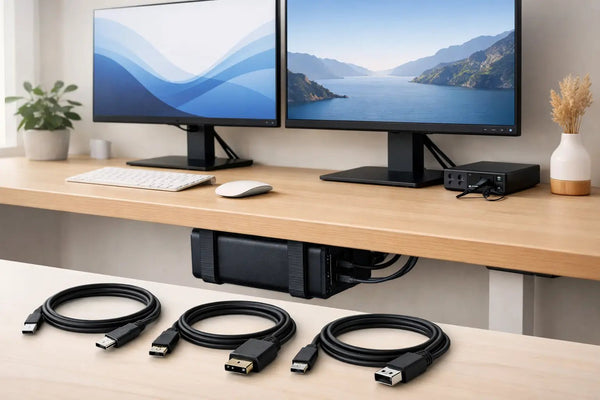
That is exactly why the SlideUnder Pro Crossbar Edition exists. For MacBook Pro 14 and 16 setups, especially on thicker desktops or sit-stand desks, the crossbar format gives a more stable mounting base and cleaner alignment. Product page: https://dockedbydesign.com/products/slideunder-pro-crossbar-edition
The point is not just to hold the laptop. It has to hold it repeatably. Same position every time. Enough retention to stay put. Enough clearance to dock without fighting the mount. Printed to under 0.1mm calibration matters here because loose fit feels cheap and over-tight fit gets annoying fast.
There is a tradeoff. If you leave a thick shell case on your MacBook, a fitted mount may not be the right answer. Cases vary too much. They change the dimensions, and not by a little. A mount designed around the actual machine will fit the machine better than it fits a machine wrapped in extra plastic. If your setup is non-standard, the custom build route makes more sense than pretending one size covers everything.
The cable is part of the mount decision
A lot of bad docking setups get blamed on the dock when the cable is the real problem. Short cable, stiff cable, weak cable, wrong-angle exit, or a cable that technically works until you add a second display and fast storage. Then the whole desk starts behaving like it has a loose connection somewhere.
If you're building around a usb c dock mount for macbook, think about cable routing early. Where does the host cable enter the laptop? Can you dock without twisting the connector? Does the cable bend naturally toward the mount, or does it fight the position every time you plug in?
For single-cable setups, the SlideLink Pro USB4 80Gbps cable is built for exactly that use case - high bandwidth, charging, displays, peripherals, one connection back to the MacBook. Product page: https://dockedbydesign.com/products/slidelink-pro-usb4-80gbps-cable
That doesn't mean every desk needs the highest-spec cable possible. If your dock and workflow are lighter, you may not need that ceiling. But if you're the kind of user running an external display, charging, SSDs, and accessories through one host line, cable quality stops being a detail. It becomes the backbone of the setup.
How to choose the right mounting position
Start with how you actually use the laptop, not how you want the desk photo to look.
If the MacBook stays docked most of the week and you want the desk to disappear, go under the desk. If you remove it multiple times a day, edge mounting usually makes more sense because the movement is simpler and more visible. If your desk has limited underside space, wall mounting can save the setup without forcing awkward cable bends.
Desk thickness matters. So does structure. Some desks have cross members, trays, frames, or sit-stand hardware exactly where the mount should go. That is why generic brackets are often disappointing. They assume a clean slab of wood and a user who doesn't care where the ports end up.
Your dock placement matters too. Some people mount the MacBook and leave the dock on the desk, which solves only half the problem. Better to think in zones. Laptop hidden. Dock hidden or at least visually quiet. Cable path short. One place to connect. One place to remove.
If you need side access rather than full concealment, the SlideEdge Pro is the better fit than forcing an under-desk solution where it doesn't belong. The edge position keeps the MacBook off the desktop while staying easier to reach. Product page: https://dockedbydesign.com/products/slideedge-pro
Fit and airflow are not optional
A MacBook mount has two jobs. Hold the machine safely and not interfere with how it works.
That means the fit has to be specific enough to avoid wobble, but not so tight that insertion feels like forcing a drawer off track. It also means not choking the machine. Closed-lid use is normal for a lot of desktop setups, but the laptop still needs sensible space around it. A mount should guide placement, not wrap the machine like packaging.
This is where small-batch manufacturing helps. When the person designing the mount is also printing and checking it, tiny fit issues get noticed. Sunny prints these in-house in Rotterdam, and that matters because tolerance control is not abstract when you're the one handling the finished part.
What people get wrong when buying a USB-C dock mount for MacBook
The main mistake is treating the mount as an accessory. It isn't. It sets the physical logic of the whole desk.
Second mistake: buying for the current mess instead of the final cable path. If your monitor cable, power cable, and dock host cable all enter from different directions, no mount will make that feel clean. Plan where each cable goes before you screw anything in.
Third mistake: ignoring removal frequency. A setup that feels amazing when photographed can be irritating if you take the MacBook out every morning for meetings. Convenience is part of clean design.
Last one is assuming generic always means flexible. Usually it means vague. A mount that tries to fit everything often fits your machine badly. If your desk depth, desktop thickness, or hardware layout is unusual, ask for a custom build. That is more useful than compromising around a product that was never shaped for your setup.
A good desk setup should fade into the background. Not because it's empty, but because every part is where it should be. If your dock is sorted and your MacBook still has nowhere sensible to live, fix that next. The calm part of a clean setup is not the photo. It's docking once and forgetting the hardware is even there.